
Planning Standing Desk Surface Space for Monitors and PC Gear
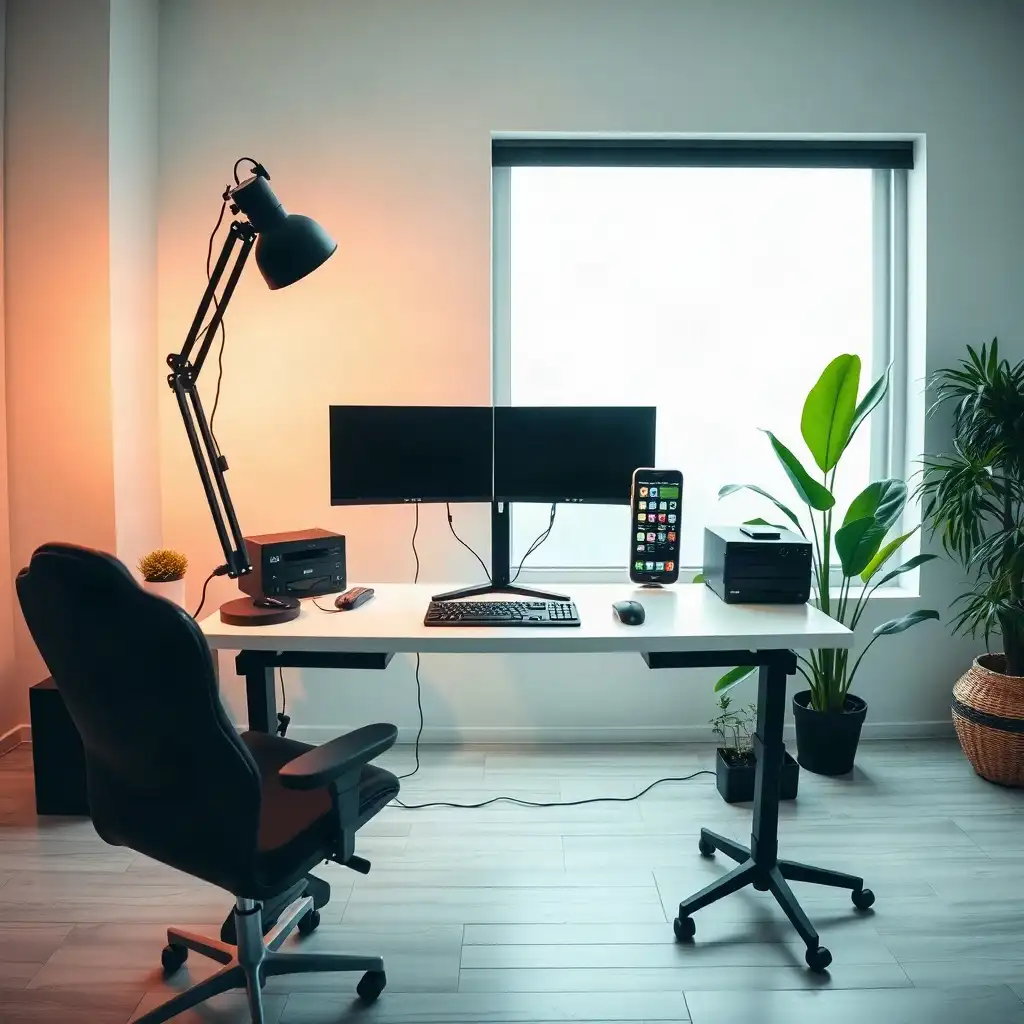
Key Takeaways
- Users learn to set up an ergonomic workspace by placing monitors and essential PC equipment to boost comfort and productivity.
- This article emphasizes good cable management and organized storage to create a tidy environment that encourages creativity.
- Readers receive practical advice on customizing their workspace while keeping it functional, ensuring every item serves a purpose without cluttering surfaces.
Assessing Your Desk Surface Area
Understanding the dimensions of your desk surface is key to making your workspace more efficient. A well-organized area helps with monitor placement and ensures that essential PC gear and accessories fit comfortably. Start by measuring the total width and depth of your standing desk. This gives you a clear idea of your available space, affecting everything from monitor placement to peripheral arrangement. Start with space for equipment and tasks, then leave room for monitors, accessories, and the tasks you do at the desk.
Consider leaving enough room for daily tasks that require extra space beyond screens and devices. Having an uncluttered zone boosts productivity by allowing users to spread out documents or take notes without feeling cramped. An effective layout creates zones for different activities, like typing versus viewing content, to improve workflow while maintaining comfort.
As you assess the available space, remember that height adjustments in standing desks may require repositioning items based on user preference or task needs. If using multiple monitors at different heights causes strain, it’s wise to make those adjustments early rather than after installation, which could disrupt overall flow later.
Keep any manufacturer-specific limits regarding size compatibility in mind when choosing equipment like monitor arms or storage solutions. These specifications can vary widely among models and brands; therefore, consulting product manuals before deciding helps ensure all components fit well within the designated area without overwhelming it visually or functionally.
Choosing Monitor Arrangement
When setting up your monitors, focus on functionality and comfort. First, determine how many screens to use and their purpose, like multitasking, gaming, or content creation. Ensure each monitor is easily accessible while allowing natural head movement to avoid strain during long hours.
Layout Considerations
Consider the layout: placing monitors side by side facilitates task switching but requires ample desk space. Stacking one monitor above another saves room but needs careful height adjustment for a comfortable viewing angle. A smart setup improves visibility and enhances your workspace’s appearance.
Stands or Mounts
Choose stands or mounts carefully, as they affect desk space and cable management. If using adjustable arms, ensure there’s enough clearance for free movement without interference from other items.
Clutter-free Environment
A tidy environment boosts creativity and productivity; plan where additional devices like webcams or speakers will go relative to your main displays. The goal is to create a balanced arrangement that accommodates different working styles while keeping everything organized for peak performance.
The Pros & Cons of Desk Space Optimization
Pros
-
Optimizing desk space effectively boosts productivity by creating enough room for essential tools and tasks.
-
A thoughtfully arranged setup supports multiple monitors, enhancing workflow and minimizing clutter.
-
Using monitor arms can clear up surface space, leading to a tidier workspace.
-
Careful planning guarantees equipment compatibility, avoiding problems related to load capacity and adjustment features.
Cons
-
If you crowd your desk with too many devices, it can create a cramped workspace that makes it hard to work efficiently.
-
When monitor arms don’t fit well with desks, you might waste time and resources trying to set things up.
-
A limited surface area can make it tough to move around and access the tools or documents you need.
-
If you're often adjusting a standing desk, it's important to pay attention to cable management so nothing gets snagged or damaged.
Prioritizing Essential PC Gear
Choosing the right PC gear is crucial for maximizing a standing desk. Start by identifying the devices needed for daily tasks, like keyboards, mice, external drives, or docking stations. Each item should serve a specific purpose to ensure everything works together without cluttering the workspace.
Focus on frequently used items, keep them within easy reach and store less-used peripherals in secondary spots. This setup boosts efficiency and minimizes distractions during work sessions.
Don’t forget about ergonomics: if multiple devices require power outlets or USB ports, plan their placement to prevent tangles and messes. Every piece of equipment occupies space, so find a balance between accessibility and aesthetics.
Consider accessories that can enhance productivity; keyboard trays or mouse pads with wrist support can promote better posture and reduce fatigue. By thoughtfully arranging each component, you’ll create an organized environment that supports healthy practices and maximizes workspace effectiveness.
Planning for Cable Management
Effective cable management is key to keeping your workspace organized and functional, especially when juggling multiple devices. Start by mapping out where each piece of equipment will go on your desk; this helps determine the lengths and paths for cables. Planning ahead avoids messy tangles that come with poor organization.
Using clips or adhesive cable organizers can keep wires bundled neatly, reducing clutter while ensuring they’re easy to reach. Consider running cables along the back edge of your standing desk to keep them hidden but accessible for adjustments.
If you’re using monitor arms, ensure their placement accommodates cabling needs without blocking movement or creating pinch points; flexibility is important as height adjustments may change anchor locations. Some desks have built-in cable management options, take advantage of these features to simplify your setup.
Leave room for future additions, new devices may join later, so plan pathways accordingly rather than cramming everything into tight spaces. By investing time in careful cable planning from the start, users improve aesthetics and boost workflow efficiency by reducing distractions from tangled cords.
Optimize Your Workspace: Monitor and Gear Layout
| Consideration | Description | Practical Checks | Manufacturer Limits |
|---|---|---|---|
| Desk Width | Ensure sufficient width to accommodate monitors and other equipment while leaving space for tasks. | Measure available wall space to determine maximum width. | Check desk specifications for width limits. |
| Desk Depth | Select depth that allows comfortable viewing distance for monitors without crowding the workspace. | Assess monitor sizes and placement to ensure adequate depth. | Refer to manufacturer guidelines for depth compatibility. |
| Monitor Arrangement | Plan for an arrangement that supports workflow, ensuring monitors are easily accessible. | Visualize or sketch out monitor layout before setup. | Confirm mounting compatibility with the desk. |
| Usable Surface Area | Maintain enough clear space on the desk for work materials and personal items. | Evaluate the total surface area after placing equipment. | Review desk dimensions in relation to equipment size. |
| Cable Management | Organize cables to prevent tangling and ensure safe movement of the desk. | Use cable ties or sleeves to keep cords organized. | Follow manufacturer recommendations for cable routing. |
| Equipment Weight | Be mindful of the combined weight of monitors and accessories to avoid overloading the desk. | Check weights of all equipment before finalizing setup. | Consult manuals for load capacity specifics. |
| Accessibility | Ensure that all equipment is within easy reach when standing or sitting at the desk. | Arrange items based on frequency of use for convenience. | Verify height adjustment range for optimal access. |
| Stability | Confirm that the desk remains stable with all equipment in place, especially when adjusting height. | Test stability by adjusting the desk and observing any wobble. | Adhere to manufacturer guidelines for stability checks. |
Incorporating Storage Solutions
Creating an organized storage solution is key to improving a standing desk setup. Start by identifying which items you need close at hand, like notebooks, pens, or important files. Use drawers or shelves that fit under the desk surface for easy access while keeping the area tidy. Open shelves allow quick access and provide space to display personal items like plants or artwork that boost motivation. For a compact desk, weigh small-workspace tradeoffs against the equipment and documents you use every day.
Think Vertically
use vertical space when adding storage solutions to your workspace design. Wall-mounted organizers maximize limited horizontal space while keeping frequently used supplies within reach. This method clears the desktop and promotes better organization habits, everything has its own spot! Consider using modular storage units that adapt as your needs change; flexibility allows users to rearrange pieces based on different workflows without completely overhauling their layout. By applying these strategies, individuals create spaces where productivity and creativity thrive.
Maximizing Workflow Efficiency
Establishing a workflow that maximizes efficiency is essential in any standing desk setup. An organized workspace helps you switch between tasks smoothly, boosting productivity. Arrange your monitors and key equipment based on your most common activities. Keep frequently used tools like keyboards and mice within easy reach to minimize disruptions. Create designated zones for different activities, like separate areas for typing and reviewing documents, to move easily through various types of work.
Evaluating Layout Choices
Another important aspect involves how layout choices support task management throughout the day. Arrange monitors to match your natural sightlines or use adjustable arms for flexibility when switching from sitting to standing. This keeps you comfortable and encourages focused attention over longer periods. Set up a dedicated space for notes or reference materials; having these items close at hand saves time searching and improves your overall working rhythm, which is crucial for staying engaged with daily responsibilities.
Maximizing Desk Space: Myths and Surprising Facts
-
Many people think a standing desk can hold any monitor setup without considering the surface area needed for other equipment.
-
A lot of folks believe two monitors will fit on a desk, not accounting for the extra space required by stands or mounting gear.
-
People often assume adding a third monitor only needs a slightly bigger desk than for two; yet, the space required depends on the specific equipment used.
-
Some users expect a monitor arm to create more desktop space; yet, it’s important to check if the arm fits well with your desk and how it attaches before assuming it will save room.
-
It’s common to forget about planning for movement with a standing desk since equipment placement should be considered at different height levels to prevent problems with cables and connections.
Adjusting for Height Variability
Adjusting the height of a standing desk is crucial for an ergonomic workspace that enhances comfort and productivity. Set the desk height according to your preferences. This may involve adjusting monitor heights based on whether you prefer an upright or relaxed position. If using multiple monitors, ensure they are at the correct heights to prevent neck or eye strain, this usually requires setting up each screen separately.
Task Variation
Different tasks may require changing your desk height throughout the day. Typing might be easier with a lower desk compared to reading documents displayed on screens at eye level. Experiment with various adjustments until you find what feels right; this flexibility allows you to alternate between sitting and standing and adapt as your work changes. Always check manufacturer guidelines regarding height limits and compatibility to ensure safety and functionality.
Creating a Personalized Workspace
Creating a workspace that matches your personal style can boost comfort and productivity. Start by choosing décor or accessories you enjoy, like colorful artwork, motivational quotes, or plants to liven up the space. This personal touch lifts your spirits and creates an inviting area for work.
Arrange personal items thoughtfully; having photos or keepsakes nearby can provide emotional support during long hours at your desk. Keep things balanced, adding personal flair is great, but ensure the space remains functional and uncluttered. Aim for a setup where each item serves a purpose or adds visual appeal without being distracting.
Consider ergonomic upgrades tailored to you. Items like custom keyboard trays or supportive footrests meet specific needs while matching your workspace’s overall look. These options reflect your personality and help maintain good posture during extended work periods.
Lighting
pay attention to how lighting affects mood and concentration in your workspace. Natural light is best whenever possible; yet, adjustable task lighting allows you to create an atmosphere suitable for different activities at any time, this flexibility encourages creativity while ensuring clarity in tasks performed under lower light conditions.
Testing Your Setup Comfortably
Testing the comfort of your setup is essential for maintaining productivity and health. After setting up your monitors and PC gear, assess how well everything works together. Spend a few hours at your desk to identify discomforts or areas needing adjustment. Check if monitor heights remain comfortable and if you can easily reach items while switching tasks.
You may need to make adjustments as you refine your workspace. Address any awkwardly placed equipment or obstructive cables immediately to avoid future frustration.
Remember to take regular breaks during this testing phase; standing desks support posture and blood flow but also require downtime for muscle relaxation. Changing positions frequently helps you determine the best height settings while maintaining comfort throughout the day.
Feedback From Coworkers
Consider getting feedback from coworkers if possible, an outside perspective can provide valuable insights for improving your layout based on shared experiences. By thoroughly checking both functionality and personal preferences now, you’ll establish a solid foundation for an efficient workspace tailored to your needs.
Optimizing Your Standing Desk Space
Optimizing your standing desk space goes beyond aesthetics; it’s about creating a workspace that enhances productivity and comfort. Start by assessing your desktop area, identify items to move off the desk to create room for essentials. Consider vertical storage solutions or wall-mounted shelves to keep frequently used items accessible while reducing clutter. This approach provides more space for daily tasks.
Arrange Your Equipment
Ensure all equipment fits your workflow. If you switch between devices often, arrange them for easy access without awkward stretching or twisting. The layout should allow quick access to tools like pens and notebooks as easily as digital gadgets; this balance helps maintain focus without interruptions when transitioning from screen activities to physical documents.
Reassess Regularly
Regularly evaluate how each part of your setup contributes to overall efficiency. As workflows change or new technology emerges, adapt your workspace, this may involve reconfiguring monitor positions based on usage patterns or integrating additional gear without crowding surfaces. By prioritizing thoughtful organization now and remaining flexible in the future, you’ll create a workspace tailored to your evolving needs.
FAQ
What items should be included when planning the layout of a standing desk?
Include each monitor with its stand or mounting hardware, along with your computer, input devices, and accessories, while leaving space for work tasks.
How does the arrangement of monitors affect the available workspace on a standing desk?
Monitor setup on a standing desk affects workspace, as larger stands and mounting hardware can reduce available surface area for important tasks.
What factors should be considered when using monitor arms with a standing desk?
When using monitor arms with a standing desk, ensure the arm fits the mounting system, check weight support, and confirm cables move freely when adjusting height.
Why is it important to check manufacturer instructions for specific equipment compatibility?
Review the manufacturer instructions for equipment compatibility to ensure correct and safe installation of your standing desk and its accessories.
How can users ensure that their setup remains functional as the desk height adjusts?
Ensure all cables and connections move freely without getting tight, caught, or pinched when adjusting the height of a standing desk.