
Check Monitor Arm and Keyboard Tray Fit on a Standing Desk
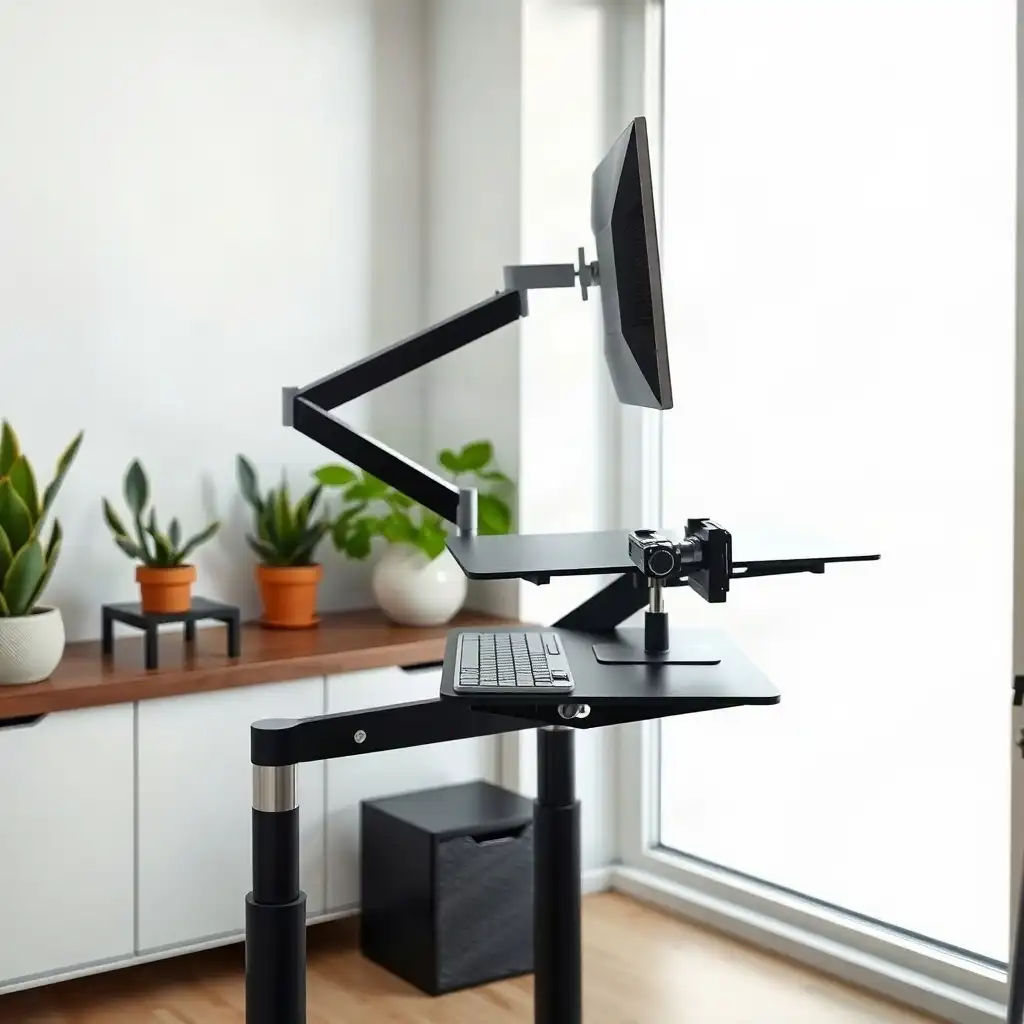
To create an ergonomic workspace, ensure your monitor arm and keyboard tray fit on a standing desk. Measure the thickness of your desktop to confirm clamp-style mounts attach securely. Check for obstructions and adhere to weight limits provided by manufacturers to maintain stability while adjusting heights. These steps improve comfort and boost productivity, making it easier to switch between sitting and standing.
Assessing Compatibility with Monitor Arms and Trays
Before installing a monitor arm or keyboard tray, check if they fit your standing desk. Measure the thickness of your desktop, as many clamp-style mounts have specific requirements for secure attachment. If your desk has an unusual thickness, consider adapter kits to ensure stability.
Examine the area around where you’ll attach the clamps. Check for obstructions like wires or components that could block secure attachment points on your desk frame. A clear space is crucial; even small obstacles may cause instability when adjusting heights or moving equipment.
Weight limits are also key; each monitor arm and keyboard tray has its own rated capacity that differs by model. Checking manufacturer specifications helps avoid overloading these accessories, which could lead to failure during use, both inconvenient and unsafe.
Consider how movement will affect functionality. Monitor arms often need more than vertical adjustment; they require lateral flexibility too. Ensure there’s enough room above and around where you plan to position them so adjustments don’t unintentionally shift balance or alignment when transitioning between sitting and standing positions.
Ensuring Proper Fit for Attachments
Before installing your monitor arm or keyboard tray, check how well they fit with your standing desk. First, measure the thickness of your desk surface. This detail matters because many clamp-style attachments have specific limits on surface thickness for a secure mount. If your desktop doesn’t meet these requirements, consider using adapter kits to improve stability.
Examine the area where you’ll attach these accessories. Identify potential obstacles, like cables, frame parts, or other items, that could interfere with a tight fit at the attachment points on your desk’s structure. Keeping a tidy workspace makes installation easier and promotes safety when adjusting height later. Even small obstructions can cause instability when moving between sitting and standing positions; therefore, ensure clear access for smooth operation during every work session.
Remember each accessory’s weight limits as specified by their manufacturers; this varies widely across different models and brands. Overloading could lead to equipment failure or accidents while working, a situation best avoided in any office setup! Check those specifications carefully before installation to enhance both comfort and productivity in your ergonomic workspace.
The Pros & Cons of Accessory Compatibility
Pros
-
Boosts ergonomic flexibility by letting you customize the positions of your monitors and keyboards.
-
Organizes your workspace better, helping to clear away clutter on your desk.
-
Promotes good posture and comfort when you're using a computer for long periods.
-
Supports various accessories, catering to different user preferences and needs.
-
Makes it easy to switch between sitting and standing with adjustable setups.
-
Can enhance productivity by improving access to tools and equipment.
Cons
-
You might face compatibility issues because of different desktop thicknesses and mounting needs.
-
If the desk frame has obstacles or structural parts, installation can become tricky.
-
Without specific guidance from the manufacturer, accessories may not fit correctly, which could lead to safety concerns.
-
Be prepared for extra costs if you need adapter kits or compatible mounting hardware.
-
The accessory's movement range could be limited if it clashes with other components or features on your desk.
-
Adding weight from accessories might strain the desk’s load capacity.
Identifying Obstructions in Standing Desks
Before you start putting up your monitor arm or keyboard tray, check how well they fit with your standing desk. Measure the thickness of the desktop; this is crucial since clamp-style mounts often have specific requirements for surface thickness to attach securely. If your desk is thicker than these guidelines allow, look into adapter kits that can help provide a stable base.
Examine the area where you’ll be mounting these accessories. Watch out for anything that might obstruct proper placement at attachment points, like cables or parts of the desk structure. Keeping your workspace tidy makes installation easier and improves safety when adjusting heights later on. Small obstacles can make setups unstable when switching between sitting and standing positions, so ensure free access for smooth operation during your workday. Choose a reachable outlet that keeps plugs within reach and cords clear of the frame’s moving parts.
Pay attention to weight limits associated with each accessory as stated by their manufacturers; capabilities vary among models and brands. Putting too much weight on them can cause mechanical failure or accidents while working, something to avoid! Review those specifications carefully before installation to optimize comfort and productivity in an ergonomically sound setup.
Understanding Weight Limits for Stability
It’s important to consider the weight limits of your monitor arm and keyboard tray before installation. Each accessory has a specific weight limit that varies by design and brand. Be aware of these limits; exceeding them can cause equipment issues and safety hazards. Knowing each item’s capacity is essential for creating a balanced setup that enhances comfort and productivity.
Stability Considerations
Beyond understanding individual capacities, consider how added weight affects overall stability when moving between sitting and standing positions. Monitor arms often require lateral movement for proper placement, so any extra load might disrupt balance, especially if you frequently adjust heights throughout the day. Ensure there’s enough space around attachments for smooth adjustments without compromising your desk’s structure or risking accidental shifts that could interrupt your workflow.
Optimize Your Workspace: Fit Matters!
| Fit Check Aspect | Description |
|---|---|
| Desktop Thickness | Verify that the desktop thickness is compatible with the mounting system of the monitor arm or keyboard tray. Most clamps require a minimum thickness for secure attachment. |
| Clamp Clearance | Ensure there is adequate space beneath the desk for the clamp to fit without obstruction. This includes checking for any crossbars or frame components that may interfere. |
| Frame Interference | Assess the standing desk frame to identify any potential interference with the movement range of the monitor arm or keyboard tray when adjusting heights. |
| Mounting Compatibility | Confirm that the mounting hardware included with the monitor arm or keyboard tray aligns with the desk’s structure and does not require additional modifications. |
| Weight Distribution | Consider how the weight of the monitor arm or keyboard tray will affect the stability of the standing desk, especially during height adjustments. |
| Cable Management | Plan for cable routing that allows for movement without causing strain or pinching on cords attached to the monitor arm or keyboard tray. |
| Height Adjustment Range | Check if the height adjustment range of the standing desk accommodates the intended use of both the monitor arm and keyboard tray at various heights. |
| User Accessibility | Evaluate the overall setup to ensure that frequently used devices are within comfortable reach and do not obstruct leg space. |
| Installation Instructions | Refer to manufacturer-specific installation guidelines for proper fitting and adjustments of monitor arms and keyboard trays. |
Setting up for Comfort and Accessibility
Creating an ergonomic workspace involves more than adding a monitor arm and keyboard tray; it’s about ensuring your setup works for you. Start by placing the monitor and keyboard at elbow height when standing. This keeps your wrists in a natural position while typing or looking at the screen, reducing strain on your arms and shoulders and helping maintain productivity. Consider how often you switch between sitting and standing; having easy-to-reach controls for adjustments makes transitions smoother.
Reachability Matters
Don’t forget that reach plays a big role too. Keep your mouse close to avoid straining as you work, reaching awkwardly can lead to discomfort over time. If you find yourself leaning forward or twisting in your chair regularly, that may indicate improper placement of accessories.
Personal Comfort Counts
remember everyone has different comfort levels based on size and preferences; take time after setting everything up to make small tweaks until it feels right for long hours of work. Addressing these details improves efficiency and supports overall well-being in the workplace.
Keeping Cables Organized During Adjustments
Organizing cables is essential for maintaining an efficient workspace while adjusting your monitor arm or keyboard tray. As you set up these accessories, take a moment to route and secure the cables properly. A mess of cords can hinder height adjustments, causing snags that disrupt workflow or damage equipment over time. Use cable ties or clips to bundle wires neatly along the desk’s edge, this keeps everything tidy and reduces hazards from loose cables.
Movement Considerations
Think about how movement impacts cable management when your desk transitions between sitting and standing positions; ensure there’s enough slack for cords without risking pinching during transitions. This helps prevent wear on electrical components and improves stability as you make important adjustments throughout your workday. By organizing cables now, you’ll create an environment that supports productivity and comfort, allowing you to focus on working efficiently. Before securing cords, plan flexible cable paths and leave enough slack for the desk’s full height range.
Exploring Myths and Facts of Desk Ergonomics
-
Many people think any monitor arm or keyboard tray will work on a standing desk because it's adjustable. Whether an accessory fits depends on the specific desktop, how the accessory mounts, and the desk frame design.
-
It’s a common belief that a clamp can attach to any desk edge without checking first. In reality, you need to ensure the thickness and shape of your desktop match the accessory's clamp requirements for proper installation.
-
Some users think the weight limit listed for a standing desk applies to all attachments equally. Actually, both the manuals for desks and accessories outline limits based on their models that must be followed for safe use.
-
Many assume there is enough space under a desk for items like keyboard trays. Many standing desks have supports underneath that can interfere when mounting or moving these accessories.
-
A common myth is that if an accessory seems to fit during initial checks, it will continue to work well as you adjust your desk height later. In practice, users should check regularly to ensure everything stays clear throughout all height adjustments.
Ensuring a Safe Setup Process
Before installing your monitor arm or keyboard tray, ensure the setup process is safe. Check that your standing desk is stable and all parts are securely attached; loose screws can cause unexpected movements during adjustments, leading to safety issues. Work on a flat surface free of clutter to reduce distractions and hazards.
Do not exceed the weight limits for either accessory, as overloading could cause problems during height adjustments. Refer to the manufacturer guidelines for each product for optimal use with your model.
Electrical Connections
Be cautious around electrical connections; avoid working near live wires unless necessary. If any repairs need attention underneath the desk before installation, consider getting help from an expert. A careful approach ensures functionality and user safety while using your workspace.
Referencing Instructions for Your Model
When setting up your monitor arm and keyboard tray, refer to the instructions specific to your model. Many manufacturers provide guides that include details like desktop thickness, clamp compatibility, and installation steps. Review these documents before starting; they contain important information about load capacities and features that could impact your workspace arrangement.
Illustrations and Diagrams
Also, pay attention to any illustrations or diagrams in the manual. They provide visual guidance on positioning items based on height adjustments and side movements for good ergonomics. This reference material is essential for avoiding common setup mistakes that might affect functionality and safety. By following manufacturer guidelines closely, you can create an efficient work environment and prevent issues from improper assembly or poor fitting.
Achieving a Well-fitted Workspace Setup
To create a workspace that fits you, pay attention to how your monitor arm and keyboard tray work with your standing desk. Check if both accessories match in design and functionality; they should support each other without hindering usability. Once set up, test it: adjust the heights while ensuring stability and ease of movement. A good setup allows for comfortable switching between sitting and standing, make small tweaks until it feels right.
Ergonomics Matter
Keep ergonomics in mind as you make adjustments. Positioning should allow for natural wrist alignment when typing or using a mouse to avoid strain during long use. Since preferences vary based on body type and work habits, focusing on these details can enhance comfort throughout your day.
Aesthetic Appeal
don’t overlook aesthetics, you want your space to look clean as much as it needs to be functional! Ensure all components are organized to prevent wires from cluttering the area or creating safety issues. By maintaining an orderly environment alongside practical fitting checks, you’ll enhance both productivity and well-being in your ergonomic setup.
FAQ
What specifications should I check for my standing desk before installing a monitor arm or keyboard tray?
Before installing a monitor arm or keyboard tray on your standing desk, check the desktop thickness, clamp clearance, frame interference, accessory requirements, compatibility, movement space, and cord management.
How do I measure the desktop thickness to ensure compatibility with my accessory?
Measure the edge of your desktop with a ruler or caliper to ensure it falls within the clamp range specified by the accessory manufacturer.
What potential obstructions should I look for beneath my standing desk before installation?
Before installing a monitor arm or keyboard tray, check for obstructions under your standing desk, like frame rails, cross supports, legs, fasteners, and existing accessories.
How do I confirm that my monitor arm or keyboard tray can support the weight of my equipment?
Check the manuals for your desk and accessory to confirm their load limits and mounting requirements for compatibility.
What precautions should I take during the installation and adjustment of my accessories?
Use the correct fasteners and mounting positions when installing accessories, keep hands away from moving parts, and follow the manufacturer’s instructions for your desk model.
How can I ensure that my setup remains functional as I adjust the height of my standing desk?
Ensure the monitor arm and keyboard tray don’t obstruct the desk when adjusting height for smooth operation.