
Monitor, Keyboard, and Laptop Position at a Standing Desk
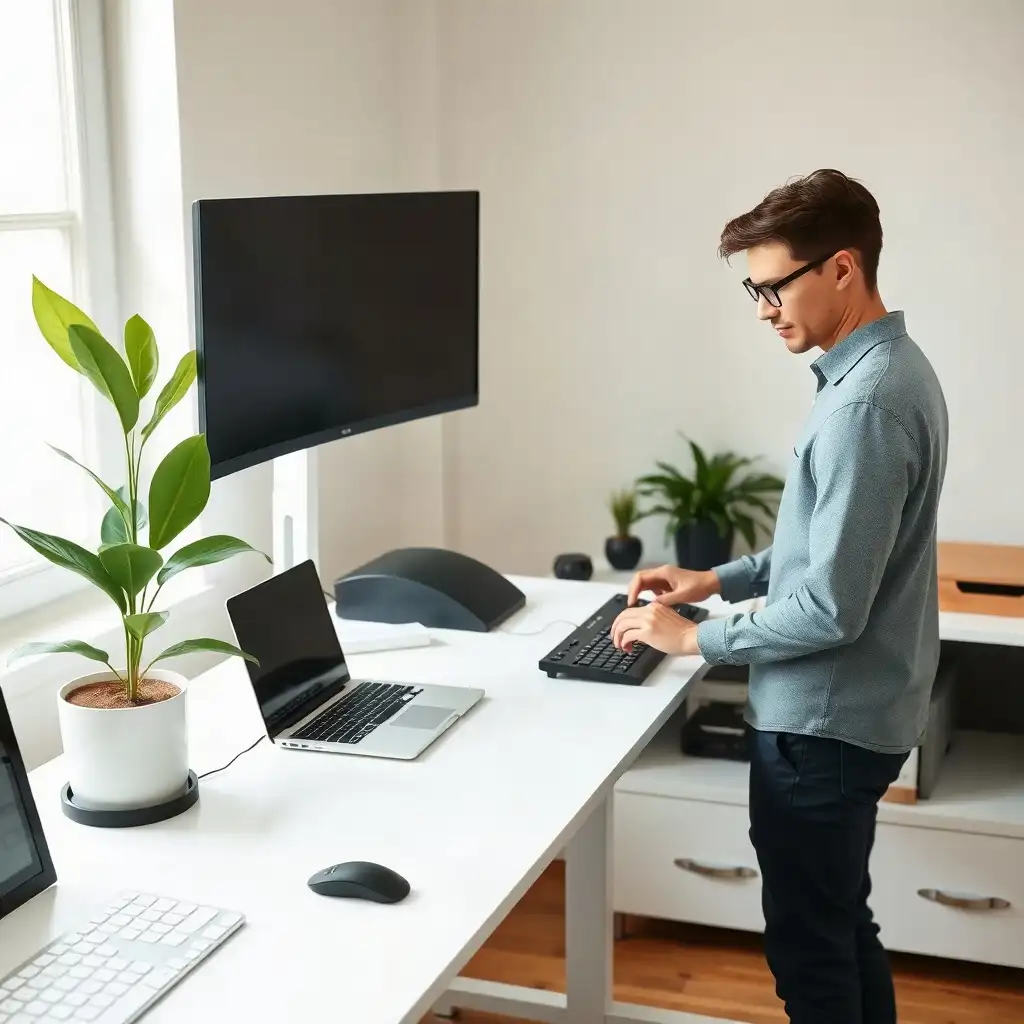
Setting up your workspace ergonomically is key to staying comfortable and productive with a standing desk. Position monitors so the top edge is at or just below eye level, usually 20 to 40 inches away, to reduce neck strain and promote good posture. Ensure your keyboard is at elbow height for relaxed arms and neutral wrists while typing. If using a laptop, consider a stand to raise the screen’s height along with an external keyboard and mouse. Adjust as needed based on changes in desk height or personal preferences throughout the workday.
Monitor Placement for Optimal Viewing
Positioning your monitor correctly is key to maintaining a healthy and productive workspace at a standing desk. Aim for the top of the screen to be aligned with or just below eye level. This setup reduces neck strain and promotes good head posture. Adjust your monitor’s distance to between 20 to 40 inches from your eyes, allowing easy reading without leaning forward or squinting.
Ensure the center of the display is directly in front of you to avoid twisting your torso during long work sessions. Regularly check these adjustments, especially if you change desk heights or personal preferences. A quick review of this setup can improve focus and lessen discomfort during extended work periods.
Keyboard Positioning for Comfort
The position of your keyboard is essential for a comfortable standing desk setup. It should be at or near elbow height to keep your arms relaxed and your shoulders down and back. If the keyboard is too high or low, it can strain your wrists, arms, and neck. Keep your elbows bent at about 90 degrees with your hands slightly above wrist level while typing to align your wrists and reduce fatigue. For shared use, label each user’s saved height settings clearly so they can quickly recall a preferred height.
Ensure there’s enough space on the surface for frequently used devices to prevent unnecessary stretching that could lead to discomfort. If you often switch between sitting and standing, be prepared to adjust regularly for optimal comfort throughout the workday. Following these tips helps maintain productivity and overall well-being during long hours at a desk setup.
The Pros & Cons of Ergonomic Desk Setup
Pros
-
Positioning the monitor directly in front of you helps maintain good posture and decreases strain.
-
Setting the top of the screen at or below eye level makes it more comfortable to use.
-
Keeping your viewing distance between 20–40 inches improves readability without needing to lean forward.
-
Placing input devices within easy reach helps keep your shoulders relaxed and wrists aligned, reducing discomfort.
-
Regularly checking your setup after changing desk height ensures that you're maintaining an optimal ergonomic position.
-
Shifting positions often can help prevent fatigue from standing or sitting for too long.
Cons
-
Changing the positions of your monitor and keyboard can take a lot of time when you switch between sitting and standing.
-
If you use a laptop, it might be tricky to set up your screen and keyboard separately without extra gear.
-
Not setting things up correctly can cause strain if you don’t adjust after changing the desk height.
-
Standing for too long might make you uncomfortable, so you'll need to change positions often, which can interrupt your work.
-
Keeping your workspace organized takes some effort to ensure that frequently used items are easy to reach while keeping leg space clear.
-
Without a consistent sit/stand schedule, users may struggle with maintaining good ergonomic habits.
Laptop Setup at a Standing Desk
When using a laptop at a standing desk, set it up thoughtfully for comfort and efficiency. Laptops have integrated keyboards and screens, making ergonomic positioning trickier than traditional setups with separate monitors and keyboards. The top edge of your laptop screen should be at or just below eye level to reduce neck strain and keep your head and spine aligned. Aim for a distance of 20 to 40 inches from your eyes to read easily without leaning in or squinting. Before buying, compare the desk’s upper and lower settings with the seated and standing heights you need.
To improve ergonomics while working on a laptop, consider using an external keyboard and mouse along with a stand that raises the laptop. This setup enhances posture and helps prevent wrist pain from typing directly on the built-in keys. Arrange your workspace so everything is within easy reach without stretching too much, allowing smoother movement during tasks and reducing fatigue over long periods.
Regularly Reassessing Your Configuration
It’s important to regularly check how you’ve set things up; changes in desk height may require adjustments in positioning your equipment for optimal effectiveness. Taking time to review this can enhance focus during work sessions by lowering physical stress linked with poor alignment, a small effort that pays off over time.
Adjusting for Desk Height Changes
As you adjust the height of your standing desk, reposition your monitor and keyboard for comfort. Keeping everything aligned is crucial; an improper setup can cause discomfort or strain during long work hours. When switching between sitting and standing, ensure that your monitor remains at eye level, typically about 2-3 inches below where you naturally look, to keep your neck aligned. Regularly check these adjustments; failing to do so as you change heights can increase physical stress and lower productivity.
Keyboard Positioning
When moving your keyboard after changing the desk height, place it close enough to avoid excessive stretching while keeping it far enough away so your wrists stay in a neutral position when typing. Regular checks help maintain good posture habits and support ergonomic practices throughout the day. Creating an adaptable workspace enhances immediate comfort and helps protect against health issues linked with poor posture or repetitive tasks over time.
Optimize Your Standing Desk Setup Today!
| Aspect | Recommended Positioning |
|---|---|
| Monitor Placement | Directly in front of the user, top at or below eye level |
| Viewing Distance | 20–40 inches from the eyes, adjusted for comfort |
| Keyboard Height | At elbow height when arms are relaxed, wrists aligned |
| Laptop Position | Raise the screen for comfortable viewing; use a separate keyboard and mouse when needed to position input devices independently. |
| Arm Position | Arms should rest comfortably with elbows near the torso |
| Leg Space | Ensure clear leg space under the desk |
| Regular Position Changes | Change position regularly to avoid fatigue |
| Equipment Independence | Use separate equipment for independent screen and keyboard positioning |
Ergonomic Accessories for Enhanced Comfort
To make your standing desk more comfortable and boost productivity, adding ergonomic accessories can help. A footrest lets you shift your weight and improves circulation during long periods of standing, reducing leg fatigue and providing better stability. An anti-fatigue mat offers cushioning for your feet, encourages movement, and lessens stress on joints, it’s a smart buy for anyone spending many hours on their feet. If you use laptops or monitors placed above the desk, adjustable arms let you position screens for easy access without straining. This flexibility is beneficial when switching between sitting and standing, helping to keep everything aligned throughout the day.
Wrist Supports
Wrist supports are helpful when typing at keyboards or laptops; they keep your wrists in line with your hands and lessen discomfort from repetitive motions tied to long computer sessions.
Ergonomic Chairs or Stools
Ergonomic chairs or stools provide extra support whenever you’re seated, this allows users to switch positions comfortably during work hours, boosting workflow efficiency while keeping health in mind.
Regularly checking how these accessories work based on comfort ensures adjustments fit well with changes in your workspace over time, allowing each user to create a personalized environment that suits them best.
Maintaining Neutral Posture
To maintain a neutral posture while working at a standing desk, focus on the alignment of your body and equipment. A neutral posture means your head should align with your spine, shoulders relaxed, and elbows close to your sides. Adjust both monitor height and keyboard position properly. When standing, place monitors directly in front of you to avoid twisting or straining. The top edge of the screen should be at or just below eye level to support good neck alignment. At both positions, set the desk to body-aligned work height so your elbows stay near keyboard height.
Keyboard Positioning
Getting the right keyboard position is crucial for comfort during long work sessions. Aim for an elbow angle around 90 degrees as you type; keeping your wrists straight improves circulation and reduces fatigue. Avoid leaning too far forward; keep devices within arm’s reach to ensure smooth movements.
Regular Adjustments
As adjustments occur due to changes in desk height or personal preferences, especially after sitting for a long stretch, it’s essential to regularly check these ergonomic guidelines. This proactive approach can help prevent discomfort from misalignment and promote healthy habits that support productivity throughout the day.
Discovering Ergonomic Secrets for Desk Setup
-
Many people think a standing desk needs the monitor at the same height for everyone, but the best position changes based on comfort and individual build.
-
A common belief is that you should adjust your keyboard and monitor together; yet, they serve different tasks and may need separate adjustments for comfort.
-
Some believe that raising their laptop screen eliminates the need for an external keyboard, but this can create an uncomfortable typing angle if using the laptop's built-in keyboard.
-
Many assume that once a desk setup feels good, there’s no need to check it again; yet, it's important to readjust your workstation after changing the desk height to maintain good posture and comfort.
-
There's a notion that standing desks require you to stand all day; yet experts recommend switching positions regularly for better comfort and productivity without a strict routine.
Creating an Organized Workspace
An organized workspace can boost productivity and comfort when using a standing desk. Clutter creates distractions that reduce focus and efficiency. To create an efficient work environment, keep essential items close, like pens, notebooks, or frequently used tools. Using drawer organizers or desktop trays helps maintain order and reduces visual clutter.
Cable Management
Managing cables is crucial for a smooth workspace experience. Tangled cords look messy and pose safety risks that could lead to accidents. Invest in cable clips or sleeves to neatly bundle wires together, this keeps them out of sight while making them easy to access for adjustments. This change improves organization and mental clarity.
Personalization
Adding personal touches like plants or motivational quotes makes your space feel better without sacrificing functionality. These elements can spark creativity and provide inspiration during challenging tasks; over time, they help improve morale on monotonous days spent behind screens.
Incorporating Movement Into Your Day
Incorporating movement throughout the workday is key to maintaining energy and comfort at a standing desk. Standing still for long periods can lead to fatigue, so include small activities to keep moving. Shift your weight from one foot to the other or do gentle stretches during breaks. Simple actions like calf raises or toe taps help improve circulation and reduce muscle tightness.
Take Regular Breaks
Taking regular breaks away from your workstation refreshes both mind and body. Stepping away for five minutes every hour can boost focus upon returning to work. During these breaks, walk around your home office or do light exercises like squats or lunges, these movements keep you active while breaking up long sitting stretches.
Set Movement Reminders
Set timers or reminders on your devices to prompt movement throughout the day. These nudges help establish a routine and serve as checkpoints against sedentary habits common in desk jobs. By incorporating movement into your daily schedule, you create an environment that enhances productivity and overall health in your ergonomic workspace setup.
Common Mistakes to Avoid
As people use standing desks, they often encounter common issues that disrupt their ergonomic setup. A significant mistake is not adjusting the monitor height when raising or lowering the desk; skipping this step can lead to neck problems over time. It’s also easy to forget to keep frequently used items within arm’s reach, resulting in awkward stretching that affects comfort and focus during long work hours.
Another issue is assuming any raised position works for typing without checking elbow placement; if the keyboard is too high or low, it could strain wrists and arms. Many neglect their posture while focused on tasks, leading to hunching instead of maintaining alertness.
Regular Assessments
Many underestimate the importance of regularly checking their workspace after making adjustments, the way you use your space changes over time! To maximize a standing desk setup, staying aware of these factors ensures better health and productivity throughout daily activities.
Elevate Your Workspace Setup
Creating an optimal workspace setup at a standing desk boosts comfort and productivity. Position all items, from monitors to laptops, according to ergonomic guidelines. Keep the top edge of the monitor just below eye level to relax neck muscles and improve spinal alignment. Maintain a distance of about 20-40 inches from the screen to minimize eye strain and support natural head positioning without leaning forward or squinting.
Adjust Regularly
As you switch between sitting and standing throughout the day, reassess your setup. Ensure your keyboard is at elbow height so you can type comfortably with wrists aligned with forearms, avoiding awkward angles that could lead to fatigue. By regularly checking these setups against personal preferences and changes in posture, you’ll create a comfortable, adaptable workspace for better performance and overall well-being during extended work periods.
FAQ
What is the ideal height for positioning a monitor at a standing desk?
The best monitor height at a standing desk is having the top of the screen at or just below eye level to avoid neck and eye strain.
How far should the monitor be placed from the user for comfortable viewing?
Position the monitor 20–40 inches away for comfortable viewing and easy readability without leaning forward.
What are the recommended positions for the keyboard and pointing device to ensure comfort?
Position the keyboard and pointing device for easy access to keep your shoulders relaxed, elbows close to your body, and wrists aligned.
How can laptop users optimize their workstation setup when using a standing desk?
Laptop users can improve comfort and reduce strain at a standing desk by using an external keyboard and mouse for separate screen and keyboard positioning.
Why is it important to recheck workstation arrangements after changing desk height?
Rechecking your workstation setup after adjusting the desk height is essential for comfort and productivity, as improper positioning can cause strain.