
Standing Desk Comfort Problems: Practical Checks to Consider
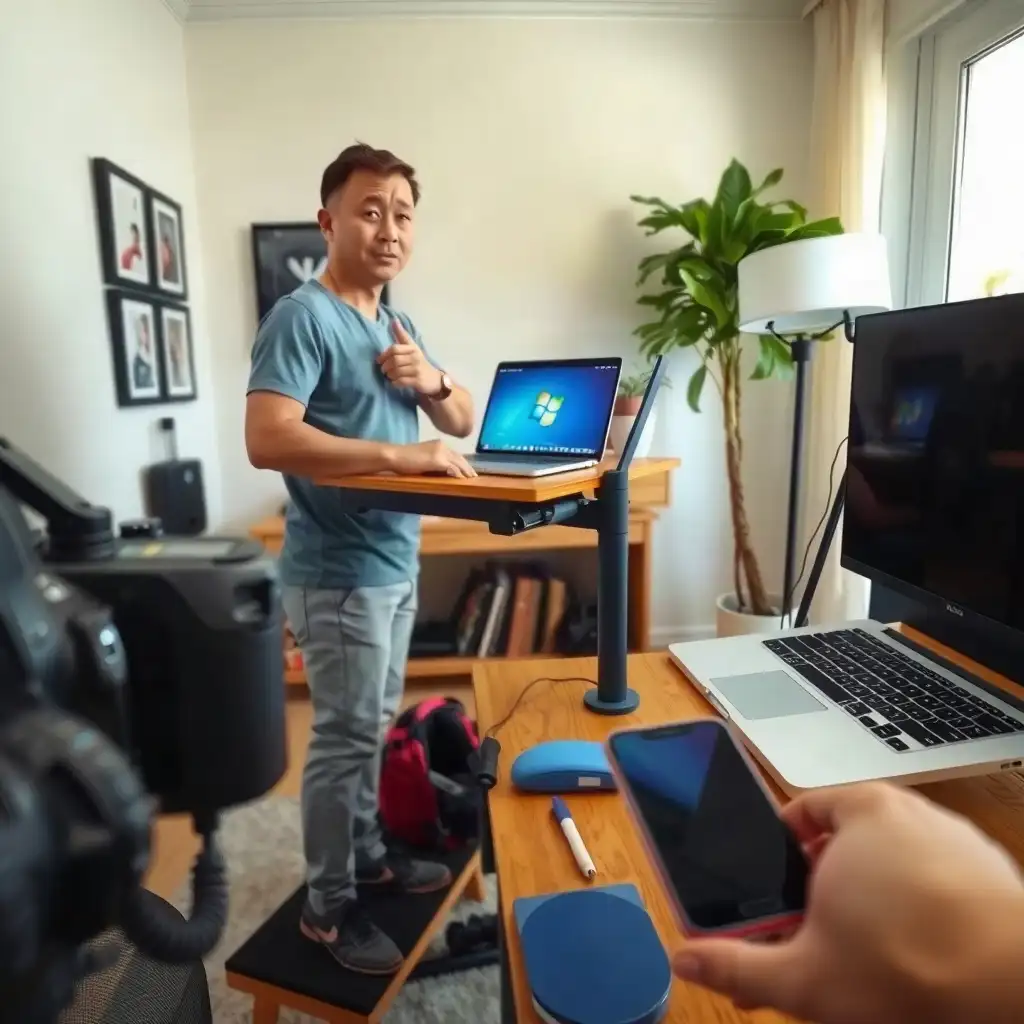
Key Takeaways
- Users learn to set up their standing desk by adjusting the height and placing the monitor correctly, which helps maintain posture and reduces strain.
- This article stresses that supportive shoes and anti-fatigue mats can improve comfort when standing for long periods.
- Readers find tips for adding movement breaks into their workday, boosting circulation and well-being while using a standing desk.
Identifying Common Standing Desk Issues
Standing desks can create challenges that often go unnoticed until discomfort arises. One common issue is desk height; if not set correctly, it can lead to awkward positions and strain on your back or neck. Ensure your elbows are at a 90-degree angle while typing, with your wrists aligned with the keyboard, this adjustment can improve your comfort throughout the day.
Monitor Placement
Another concern is monitor placement. If it’s too high or low, you may lean forward or squint, adding tension to your shoulders and eyes. Position your monitor so its top edge is at eye level; this keeps your head in a neutral position while you work. Also, keep frequently used items within easy reach to reduce unnecessary stretching and twisting, enhancing comfort during long standing sessions.
Assessing Desk Height and Setup
A key factor in maximizing your standing desk experience is assessing your setup. Ensure the desk height matches your natural posture; if it’s too low or high, discomfort will arise quickly. Keep your elbows close to your body at about 90 degrees while typing to reduce strain on your neck and shoulders.
Monitor Placement
Monitor placement is also important for comfort. If positioned incorrectly, like being too far away or at an awkward angle, you may lean forward or squint at the screen. Position your monitor so its top edge aligns with eye level to support a neutral head position and lessen tension around the eyes and upper back.
Ergonomics in Your Workspace
Consider ergonomics when arranging frequently used items on your workspace: keeping them within easy reach can prevent twisting motions that lead to fatigue over time.
The Pros & Cons of Standing Desk Comfort
Pros
-
Standing desks help you maintain better posture by promoting an upright position.
-
They can boost your energy levels and productivity while you work.
-
You have various adjustment options to tailor the desk for your comfort based on what you need.
-
Switching positions regularly can lower the chances of discomfort that come from sitting too long.
Cons
-
If your setup isn't right, you might feel strain in your shoulders, wrists, and back.
-
Not having enough space around the desk can limit how you move and feel comfortable.
-
If your monitor is positioned inconsistently, it could lead to eye strain or awkward neck angles.
-
Standing for long periods may cause fatigue or discomfort in your legs and feet.
Footwear and Floor Surface Considerations
Footwear and the floor surface significantly affect comfort when using a standing desk. Choosing the right shoes is essential; they should provide support, cushioning, and stability to reduce fatigue during long periods of standing. Select shoes that match your arch type, flat, neutral, or high-arched, as this impacts how you feel by day’s end. Consider anti-fatigue mats designed for standing desks.
These mats cushion your feet and legs and encourage small movements throughout the day.
The Surface Matters
The flooring type also plays a crucial role; hard floors can cause discomfort over time due to their rigidity. A mat with beveled edges helps prevent tripping and promotes better posture by allowing slight weight shifts without straining any part of your body. Remember that these solutions are personal choices, what works for one person may not be ideal for another.
Finding Your Comfort
consider both supportive footwear and an appropriate mat together: combining them enhances overall comfort at workstations. Experiment with different combinations until you find what truly boosts your daily productivity without compromising well-being. The broader comparison of sitting and standing includes work-position options, as well as comfort and task demands.
Improving Comfort with Accessories
Integrating accessories into your standing desk setup can boost comfort during the workday. One key accessory is a footrest. This addition allows you to shift your weight from one foot to another, reducing strain and fatigue when standing for long periods. Look for a stable, appropriately sized footrest that encourages small movements; this relieves pressure on your feet and legs while supporting better posture.
Another useful tool is an ergonomic monitor arm or stand. By adjusting the height and angle of your screen, you ensure it sits at eye level, cutting down on neck strain and enhancing viewing comfort. Adding cable management solutions keeps your workspace organized and free from distractions that could lead to awkward positions as you reach for tangled cords or misplaced devices. With these upgrades, you’ll create a more comfortable environment that supports productivity and well-being.
Essential Checks for Standing Desk Comfort
| Practical Check | Description | Considerations | Source |
|---|---|---|---|
| Neutral Working Position | Should include relaxed shoulders, elbows near the torso, aligned wrists, and comfortable support. | Regularly change positions; no all-day standing prescription. | OSHA |
| Workspace Arrangement | Input devices must be within comfortable reach, and leg space should remain clear. | Adjustable surfaces support better arm/wrist positioning. | OSHA |
| Monitor Position | The monitor should be in front of the user, with the top at or below eye level. | Comfortable viewing distance is typically 20–40 inches. | OSHA |
| Floor Mats | Must fit the available standing area and avoid interference with chair casters and desk travel. | Cushioning and surface texture are personal preferences. | Uplift Desk |
| Footrests | Should be stable, appropriately sized, and positioned to allow for posture changes. | May provide an alternative foot position; comfort varies by user. | OSHA |
| Desk Dimensions | Width and depth must suit actual equipment and reach. | Refer to manuals for specific load ratings and clamp thickness. | Manufacturer Manuals |
| Cleaning Procedures | Follow actual surface and manufacturer care instructions; disconnect power before cleaning. | Keep liquids away from electrical components. | Manufacturer Manuals |
| Equipment Compatibility | Ensure controllers, frames, motors, and desktops are compatible based on manufacturer specifications. | Not all components are generically interchangeable. | Manufacturer Manuals |
| Mat Design Features | Different mat sizes, beveled edges, and textured surfaces are design features. | Choose based on footprint and clearance needs. | Uplift Desk |
Regularly Changing Positions
To improve your standing desk experience, change positions regularly throughout the day. Standing still for too long can cause discomfort and fatigue, so include movement in your routine. Shift your weight from one foot to the other, stretch, or take short walks around your workspace, these actions help keep blood flowing and muscles active. Switching between sitting and standing is also helpful; while OSHA doesn’t recommend a specific schedule, focusing on neutral postures is key. Pay attention to how you feel. Make position changes part of the workday, adjusting to comfort and task demands rather than following a rigid schedule.
If you often forget these changes, consider setting reminders on your phone or using apps designed for this purpose. Every 30 minutes could be a good time for a quick position shift or stretching session. Creating small rituals around changing your stance adds variety to what might otherwise seem like endless hours at a desk.
Ergonomics Matter
When switching positions, ensure that each setup follows ergonomic guidelines: keep elbows close to your body with wrists aligned while typing, whether seated or standing. This approach enhances comfort and supports better posture during transitions. By making regular adjustments part of your daily work rhythm, you’ll effectively manage comfort levels as you tackle tasks ahead.
Maintaining a Clear Workspace
A messy workspace can be a source of discomfort, making your standing desk experience less enjoyable. Assess how organized your area is; keeping frequently used items within easy reach reduces awkward stretching or twisting. An organized space boosts efficiency and improves comfort throughout the day. Eliminate distractions, like papers, cables, and random objects, to allow for smooth movement while you work.
Storage Solutions
Consider storage options like shelves or drawer units that fit well with standing desks; these can keep important tools nearby without cluttering your immediate area. Don’t forget cable management: tangled cords can be frustrating and may cause injuries as you move around them. By creating an environment where everything has its own spot, you promote mental clarity and physical ease, a straightforward way to boost productivity while ensuring your well-being at work.
Adjustments Matter
remember that small changes in how you set up your workspace can greatly affect comfort over time. Regularly check for anything blocking legroom or foot placement; keeping walkways clear encourages natural movement instead of forcing uncomfortable positions when reaching for supplies or switching tasks. A tidy workspace brings a sense of calm amid busy schedules, something often overlooked when seeking ergonomic wellness.
Unveiling Myths About Standing Desk Discomfort
-
Discomfort from a standing desk is influenced by monitor placement, keyboard position, and workspace surroundings.
-
Sticking to a set schedule of sitting and standing may not ensure comfort; it varies between individuals and should adjust based on personal needs and tasks.
-
A higher desk does not automatically improve posture; effective workstation setup requires checking specific positions at the actual desk rather than following general height guidelines.
-
Using a laptop does not eliminate the need for ergonomic adjustments; raising the laptop screen can make its built-in keyboard uncomfortable, highlighting the importance of separate input devices.
-
Not all standing mats provide health benefits; their effectiveness depends more on personal preferences for cushioning and texture than just features.
Adjusting for Personal Preferences
Personal preferences play a crucial role in the standing desk experience, as everyone has different needs and comfort levels. Start by evaluating your workspace setup against ergonomic principles; simple adjustments can lead to significant improvements. Check the height of your monitor and keyboard. If you often strain or lean forward, adjust their positions to maintain a neutral posture, keeping your elbows close to your body at around 90 degrees can reduce discomfort.
Consider accessories that suit you: some prefer cushioned footrests or anti-fatigue mats, while others favor compact setups for greater movement.
Personalize Your Space
Don’t hesitate to customize aspects like lighting and ambiance; softer lighting reduces eye strain during long hours, while plants can enhance mood and create a relaxing environment. Experiment with these changes to find what makes you comfortable throughout the day instead of adhering strictly to standard guidelines. Remember that ergonomics isn’t one-size-fits-all; listening to your body is key to creating an ideal workspace. When everything feels right according to your standards, productivity improves alongside well-being.
Enhancing Your Standing Desk Experience
To enhance your standing desk experience, consider improvements that focus on comfort and usability. Start by adjusting your workspace environment, temperature can greatly affect how you feel while standing. Open windows or use fans to create airflow that keeps you alert without making you too cold. Use timers or reminder apps for regular movement breaks; these prompts help prevent stagnation during tasks.
Sound Management
is managing sound: background noise can be distracting and tiring over time. Consider playing soft music or using white noise machines designed for workspaces, they may improve focus while masking disruptive sounds. A well-placed speaker system with calming tracks could make your space more productive.
Visual Organization
don’t overlook visual organization through wall-mounted boards or digital displays where important notes are easily accessible but not cluttering your desk; this keeps the surface clear while ensuring key information stays fresh in your mind. By incorporating these changes into your routine, you create a personalized workspace that supports both comfort and efficiency, a crucial balance during any productive day at a standing desk.
FAQ
What should I check to ensure my standing desk is set up for optimal comfort?
To stay comfortable using a standing desk, relax your shoulders, keep elbows close, wrists straight, position the monitor for easy viewing, and ensure leg space and accessibility.
How do I position my monitor to avoid straining my neck while using a standing desk?
Set your monitor so the top aligns with or is below eye level and keep it 20–40 inches away to prevent neck strain while using a standing desk.
What factors should I consider regarding the floor area and mat when using a standing desk?
Ensure the area around your standing desk is spacious for movement, and that the mat fits well without obstructing your chair’s wheels or desk mobility.
How can I determine if my current position at the desk is comfortable for different tasks?
Check that your shoulders are relaxed, elbows are close to your body, wrists align when reaching for the keyboard and mouse, and the monitor is easy to read without leaning.
What maintenance steps should I follow to keep my standing desk functioning properly?
Follow the manufacturer’s cleaning instructions, keep liquids away from electrical parts, and check product documentation for troubleshooting and maintenance tips.